![blue_logo-2.png]](https://support.princh.com/hs-fs/hubfs/blue_logo-2.png?height=40&name=blue_logo-2.png)
There are many valid reasons as to why a print job needs to be either resent or cancelled. Luckily, both options are easily accessible from the Princh Administration Panel through both the 'Dashboard'- and 'History' tab. For more detailed information on how to resend or cancel print jobs, please refer to the guide below.
Resending print jobs
Print jobs can be resent within 1 hour of the job being registered in the Princh Administration Panel.
When resending a print job, you now have additional options:
- Resend the full document (default)
- Resend specific pages (one page range can be selected)
- Resend multiple copies of the document
These options are available via the 'Resend' button and can be enabled individually or combined as needed.
If a print job fails due to document compatibility issues, you can choose to resend it using the Extended Compatibility feature from the 'Dashboard' tab in the Princh Admin Panel
Cancelling payment
Print jobs can be cancelled within the first 72 hours of the job being registered in the Princh Administration Panel.
- Log in to the Princh Administration Panel and select the tab 'Dashboard' or 'History' in the menu to the left.
- Locate the specific print job that requires either resending or cancellation.
- Check the box next to the selected print job and click 'Resend' or 'Cancel payment' in the top right corner, depending on the action needed

- When clicking 'Resend', you will have the following options:
- Enable Partial resend to select a specific page range (only one range can be set)
- Set the number of copies
- Enable Extended Compatibility
- Proceed to resend the job.
- Proceed to resend the job OR
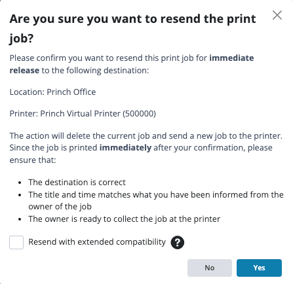
- Resend the job with 'Extended Compatibility' by checking off the box.
- If 'Extended Compatibility' mode is enabled, the document will be flattened and optimised for compatibility before resending to prevent helping common printing issues. Please note, that this may extend the time to print
- If 'Extended Compatibility' mode is enabled, the document will be flattened and optimised for compatibility before resending to prevent helping common printing issues. Please note, that this may extend the time to print